

All requests to the Questra API must be authenticated with a Bearer token. This guide walks you through creating an API key and using it in your requests.Documentation Index
Fetch the complete documentation index at: https://docs.questra.ai/llms.txt
Use this file to discover all available pages before exploring further.
Create an API key
1. Open the dashboard
Sign in to app.questra.ai and navigate to your surveys.
2. Open the user menu
Click your name in the bottom-left corner of the sidebar to open the account menu.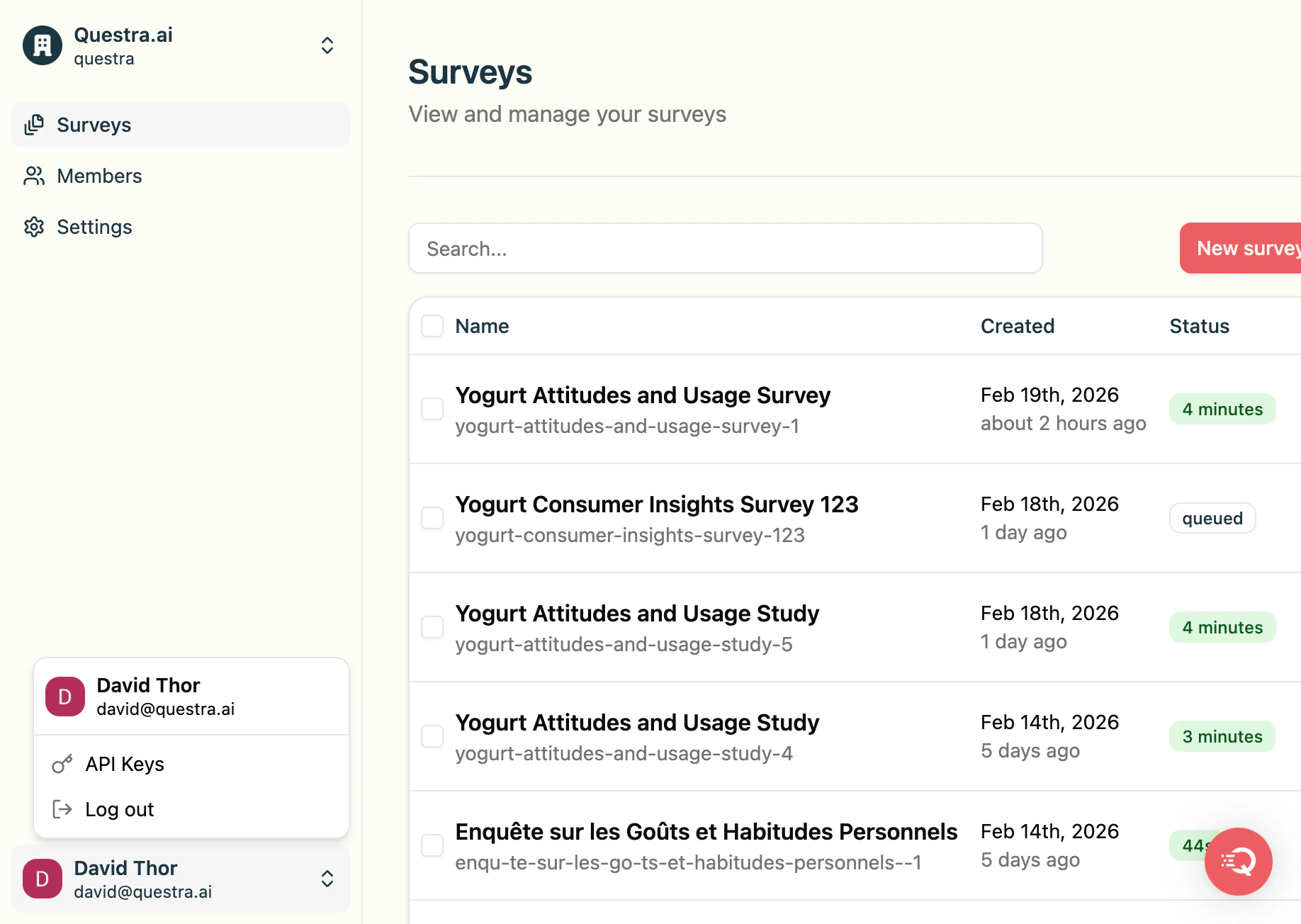
3. Go to API Keys
Click API Keys in the menu. This takes you to the API key management page.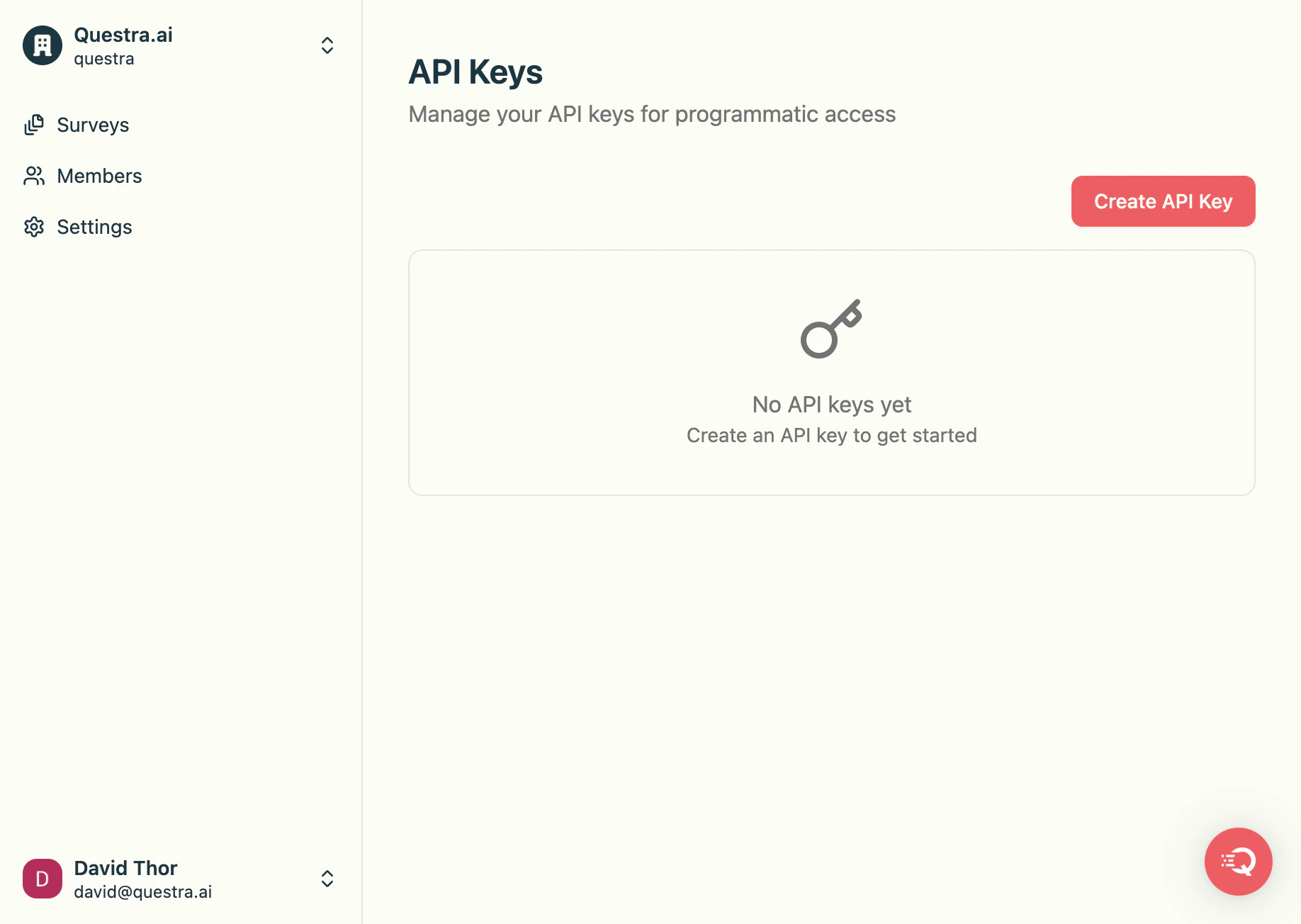
4. Create a new key
Click Create API Key in the top-right corner.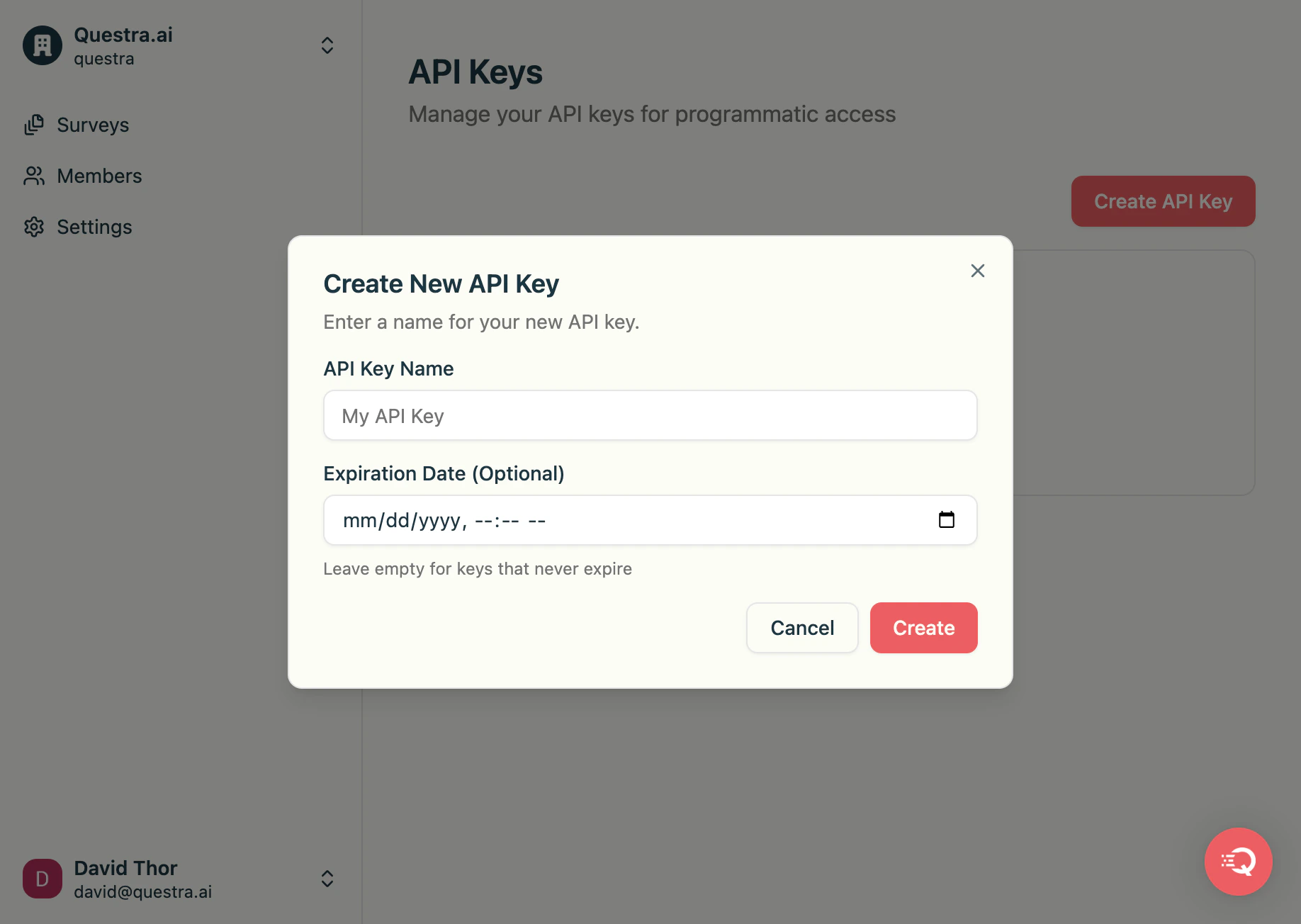
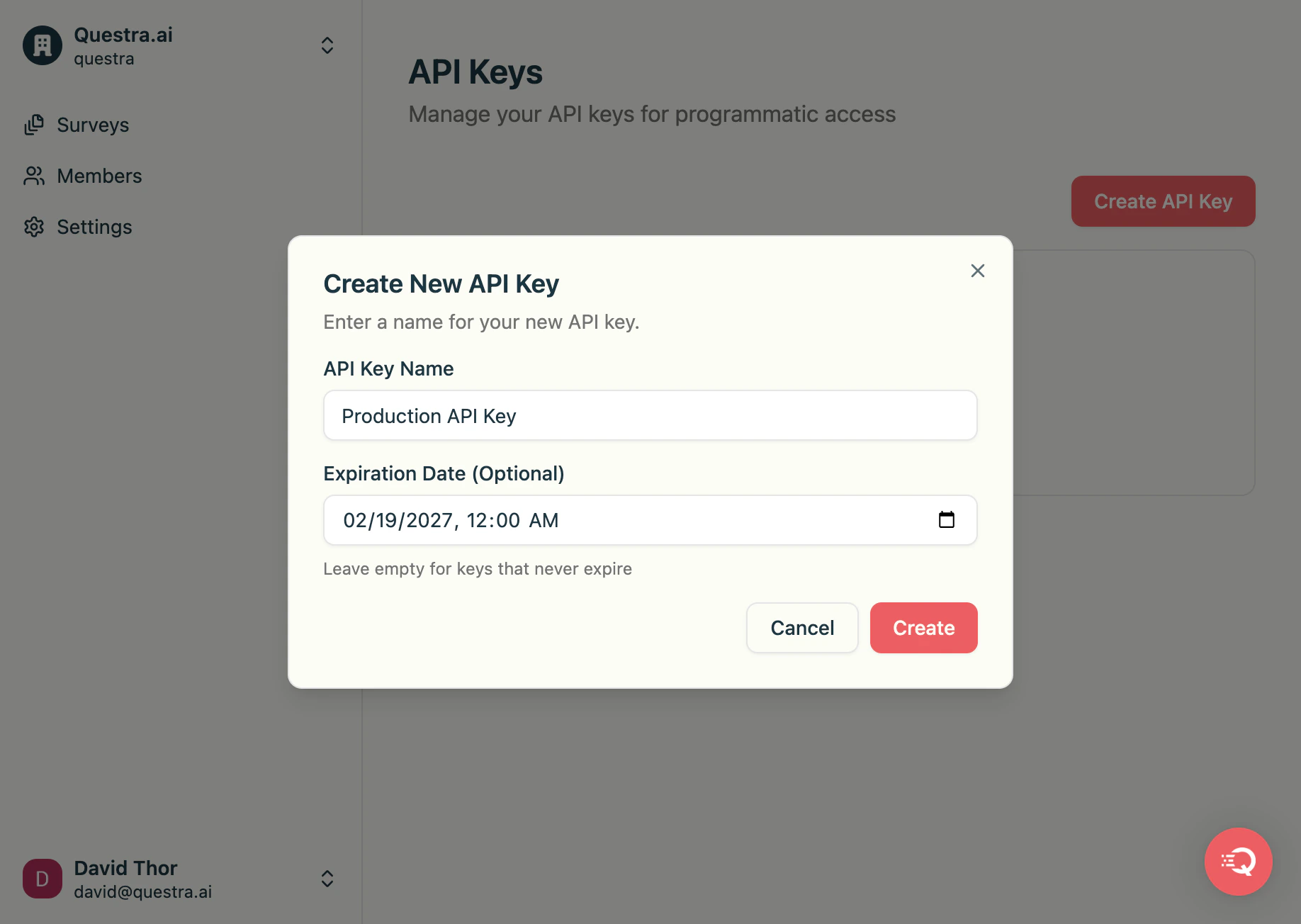
5. Name your key and set an expiration
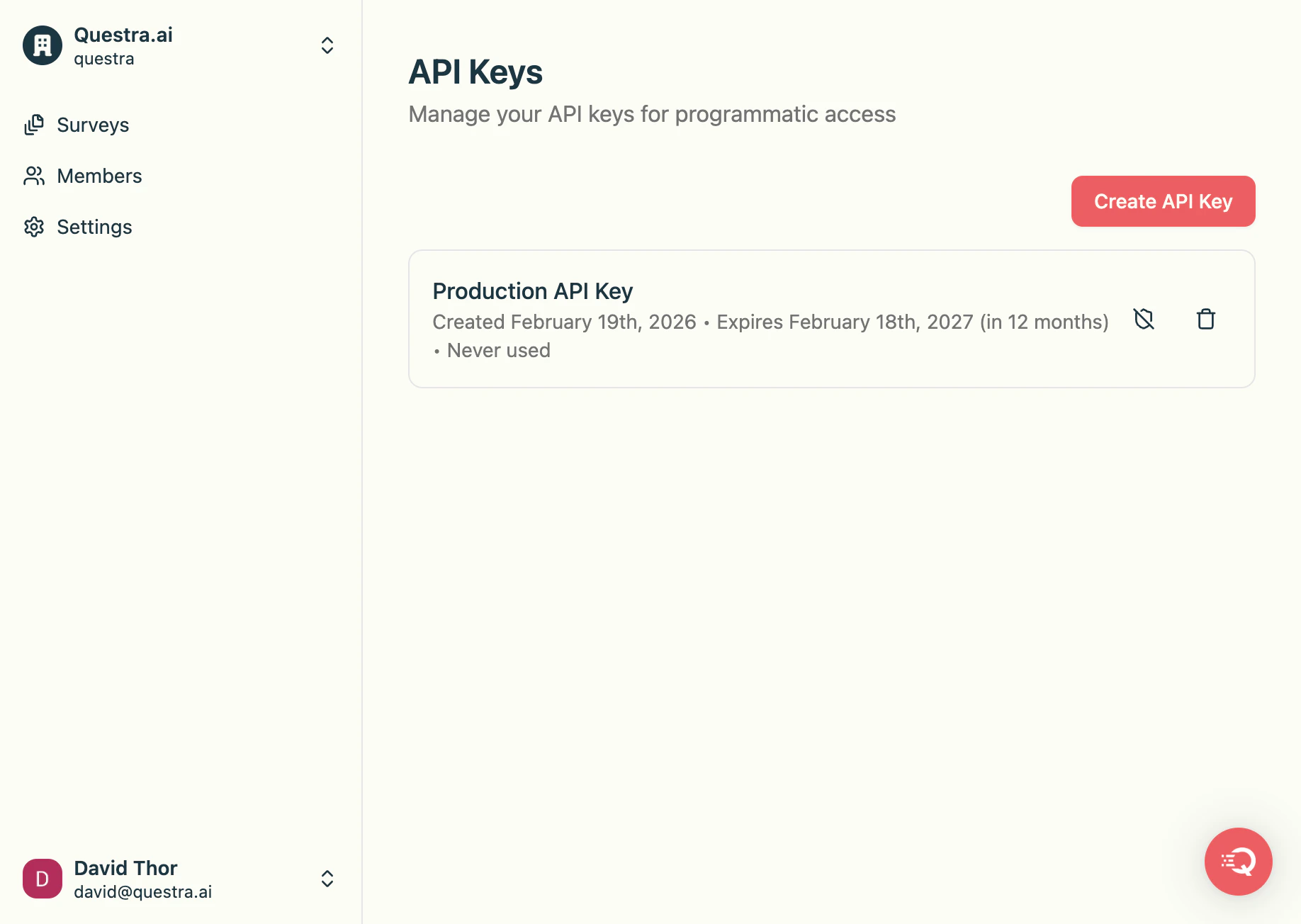
Give your key a descriptive name (for example,Production API Key) so you can identify it later. Optionally set an expiration date — keys without an expiration date never expire.
6. Copy your key
Your API key is shown exactly once. Copy it now — you won’t be able to see it again.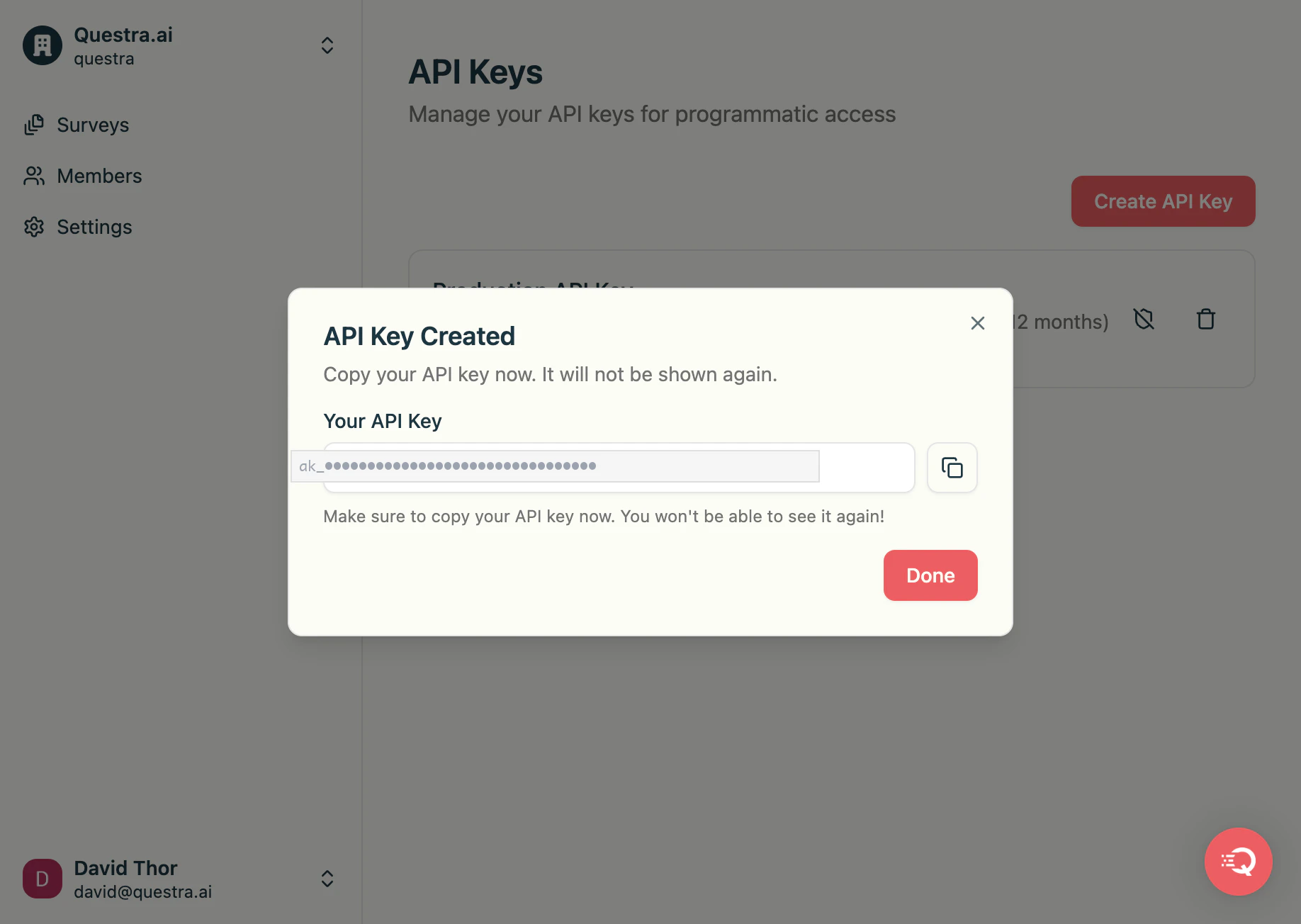
Find your organization ID
Every API request must include your organization ID in theX-Org-Id header. To find it:
- Sign in to app.questra.ai
- Navigate to Settings
- Copy your Organization ID
Use your key in requests
Pass your API key as a Bearer token in theAuthorization header and your organization ID in the X-Org-Id header of every request.
Manage your keys
From the API Keys page you can:- Revoke a key — click the bell-slash icon to disable a key without deleting it
- Delete a key — click the trash icon to permanently remove a key
401 Unauthorized response.